After you have downloaded the ZIP file you need to UNZIP the file.
On Windows XP, for the DEMO version, you may run the setupdemo.exe file from within the Zipped file. For the full version you should unzip the ZIP file.
The commercial version comes with a license file in the form of a DLL. This file is always on the disk where the file SETUP.EXE is located. When explorer does not show this file, you must set the option in explorer to view system files (because a DLL is a system file).
For the commercial version the setup file is named SETUP.EXE
Some resellers might distribute the DLL file in a zipped file. Or the file might have the extension of a number like "123". In this case you must rename the extension to DLL.
 Make sure the DLL is in the same directory as the SETUP.EXE file.
When you are using the DEMO version you don't need to worry about the license file.
When you are installing on a NT machine like NT4 , W2000, XP, Vista, Win7, Win8 or Win10, you need to have Administrator rights.
After installing BASCOM you must reboot the computer before you run BASCOM.
The installation example will describe how the FULL version installs. This is almost identical to the installation of the DEMO version.
Before installing the software : make sure you downloaded from mcselec.com domain. Or that you purchased from an authorized reseller.
When in doubt you can always check the executable on your PC using your browser at virustotal.com. In fact it is good practice to check files before you install them. virustotal.com will use 50 or more virus scanners.
This will give a good idea about the safety of a file.
Run the SETUPDEMO.EXE (or SETUP.EXE) by double clicking on it in explorer.
Depending on the windows version and your user rights, windows might give the following message :

You need to click the YES button.
The following window will appear:
(screen shots may differ a bit)

Click on the Next button to continue installation.
The following license info window will appear:

Read the instructions , select 'I accept the agreement' and press the Next button.
The following window will be shown :

Read the additional information and click the Next button to continue.
Now the next screen will appear:

You can select the drive and path where you like BASCOM to be installed. You can also accept the default value which is :
C:\MCS\BASCAVR2082
or you can install into a folder like :
C:\Program Files\MCS Electronics\BASCOM-AVR
Microsoft likes software to be installed into the Program Files folder. But this also means that all sub folders must be stored elsewhere since all folders under Program Files are write protected by Windows.
Using a user writable folder, all the files can be stored in one location.
It is a good idea to install each new version into its own folder. This way, you can use multiple versions at the same time. As of version 2082, the settings file is stored in the application folder too.
When you are finished click the Next Button to continue.
When the directory exists, because you install a newer version, you will get a warning :

In case of this warning, select Yes. Or select NO and select a different folder.
You will now see the following window:
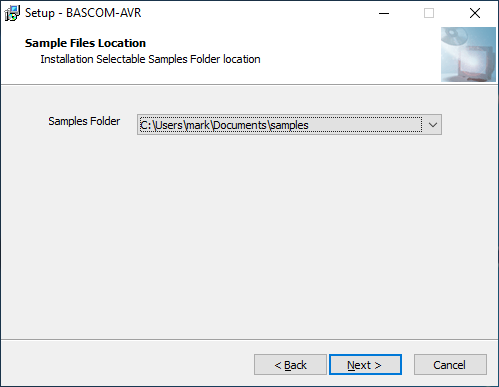
You can select the folder where the sample files are installed. This can be :
c:\users<USER>Documents\samples
or c:\MCS\BASCAVR2082\Samples
We recommend to use the second option so all files are placed under the application folder.
After you made your choice, click the Next button.
You are now presented with an optional component : parallel printer programming support.
Nowadays there are plenty serial and USB programmers available. Only select this option when you still use the LPT port for ISP programming.

Click the Next button to continue.
You will now be presented a choice for the program group name and location.

You can choose to create into a new Program Group named 'BASCOM-AVR' , or you can modify the name, or install into an existing Program Group. Press the Next-button after you have made your choice.
Now the files will be installed.
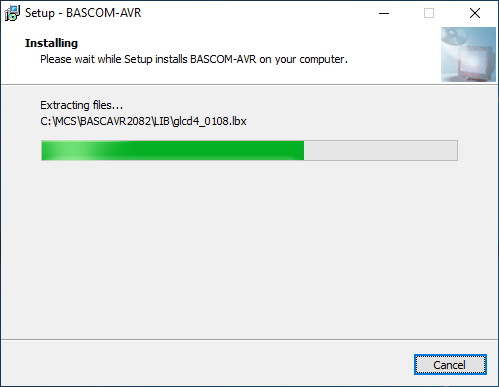
After the main files are installed, some additional files will be installed. This depends on the distribution.

These additional files can be PDF files when the program is distributed on a CD-ROM.
When the installation is ready you will see the last screen :

You have to reboot your computer when you want to make advantage of the programmers that BASCOM supports. You can also do this at a later stage.
The BASCOM-AVR Program folder is created:

You can view the "Read me" and "License" files content and you can start BASCOM-AVR.
BASCOM supports both HTML Help and old Win help(HLP). The HLP file is not distributed in the setup. You need to use the Update Wiz to download it. But it is advised to use the HTML-Help file.
When you used to use the HLP file, and find it missing now, turn on 'Use HTML Help' in Options, Environment, IDE.
When the UpdateWiz is not installed, you can download it from the register.
The option Help, Update will also download the wiz.
Till version 2074 all sample files were placed under the MCS Electronics\BASCOM-AVR folder.
Version 2075 places the sample files under the user Documents\MCS Electronics\BASCOM-AVR\Samples folder.
While we prefer to keep all files at one location and sub folders, this is not allowed in Windows 7 where the Program Files folder and all it's sub folders are write protected.
In version 2082 you can decide where the samples must be installed
The BASCOM-AVR application contains a number of folders.
\DAT : processor data files. These files contain processor info. When you use $REGFILE, the value should match with one of the files.
\LIB : library files. They have the extension LIB or LBX. LBX is a compiled LIB file. A library files contains ASM sub routines.
\INC : include files. Notice that these server only the compiler. Do not change or store include files here. Normal include files are stored along with the samples.
\PDF : PDF files with the bascom-avr manual and processor files from microchip/atmel.
\PINOUT : processor pinout and XML description files
\SAMPLES : this depends on the user choice during installation